
Tutorials
Learn Situvista, one task at a time.
Start with the three-minute overview, then pick the step you need. Every clip is cut from a real session in the product.
See the pipeline live. One photo, a scan worked on at the office, then the design on site in AR. Three real sessions in three minutes.
New here · 0:54
Start with these three
A scene from one photo, a look around the studio, and the link your customer opens. Under a minute together.
The whole workflow
Watch the whole workflow
One real job per path, from the first step to the quote, in the order it happened. Waiting is sped up, every step is kept; jump to a chapter or open its tutorial.
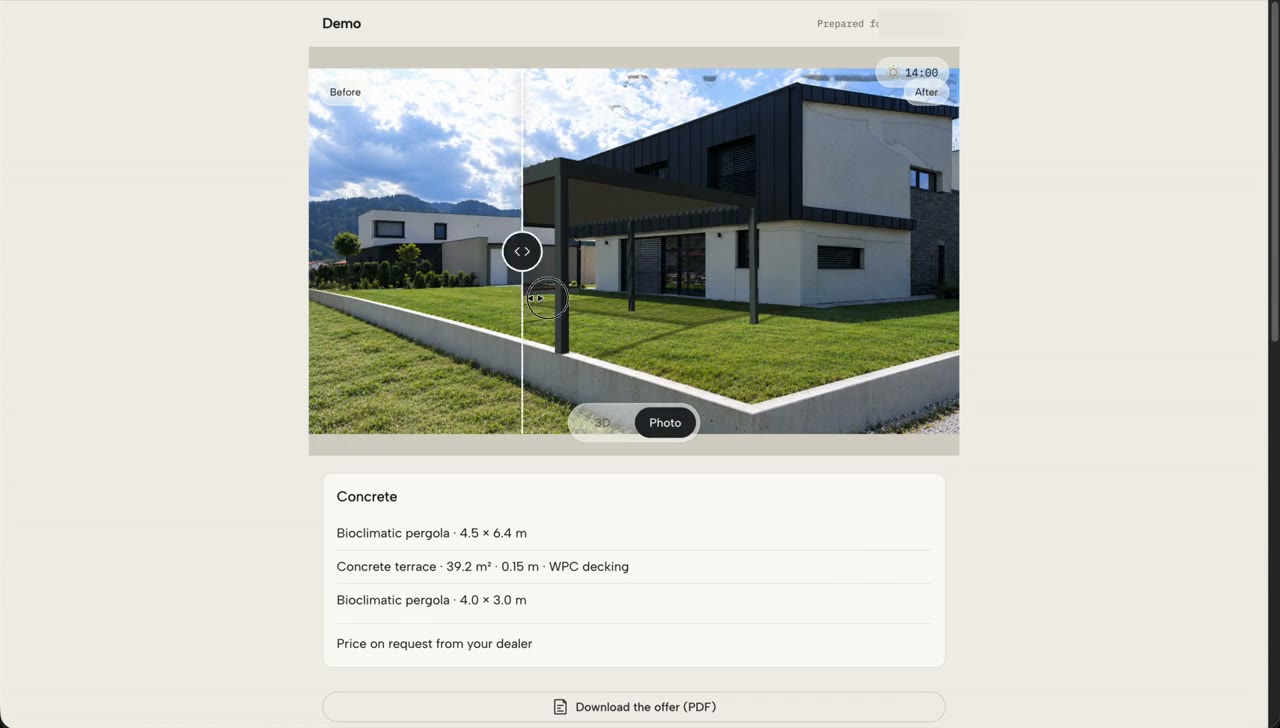 8:05
From a photo to a quote
One photo of the house becomes a scene, a design and a quote.
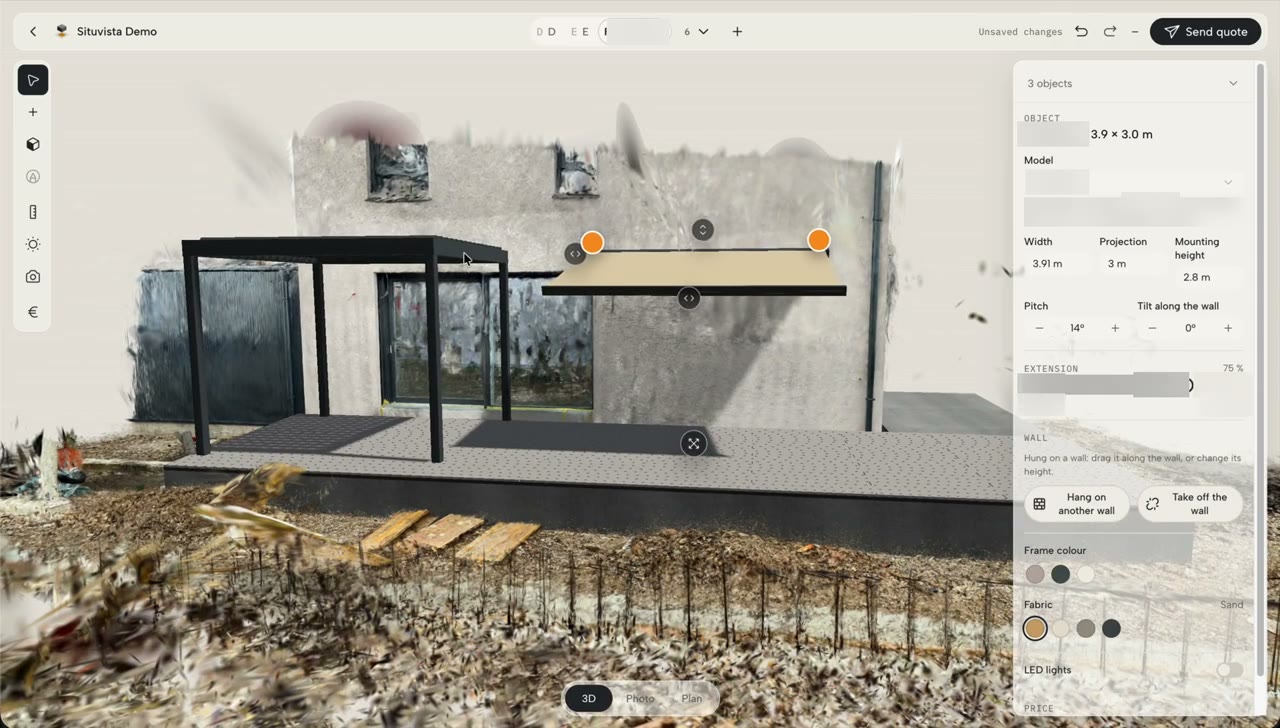 5:06
A 3D scan, designed at the office
The site scanned with a phone, then designed, presented and quoted from the desk.
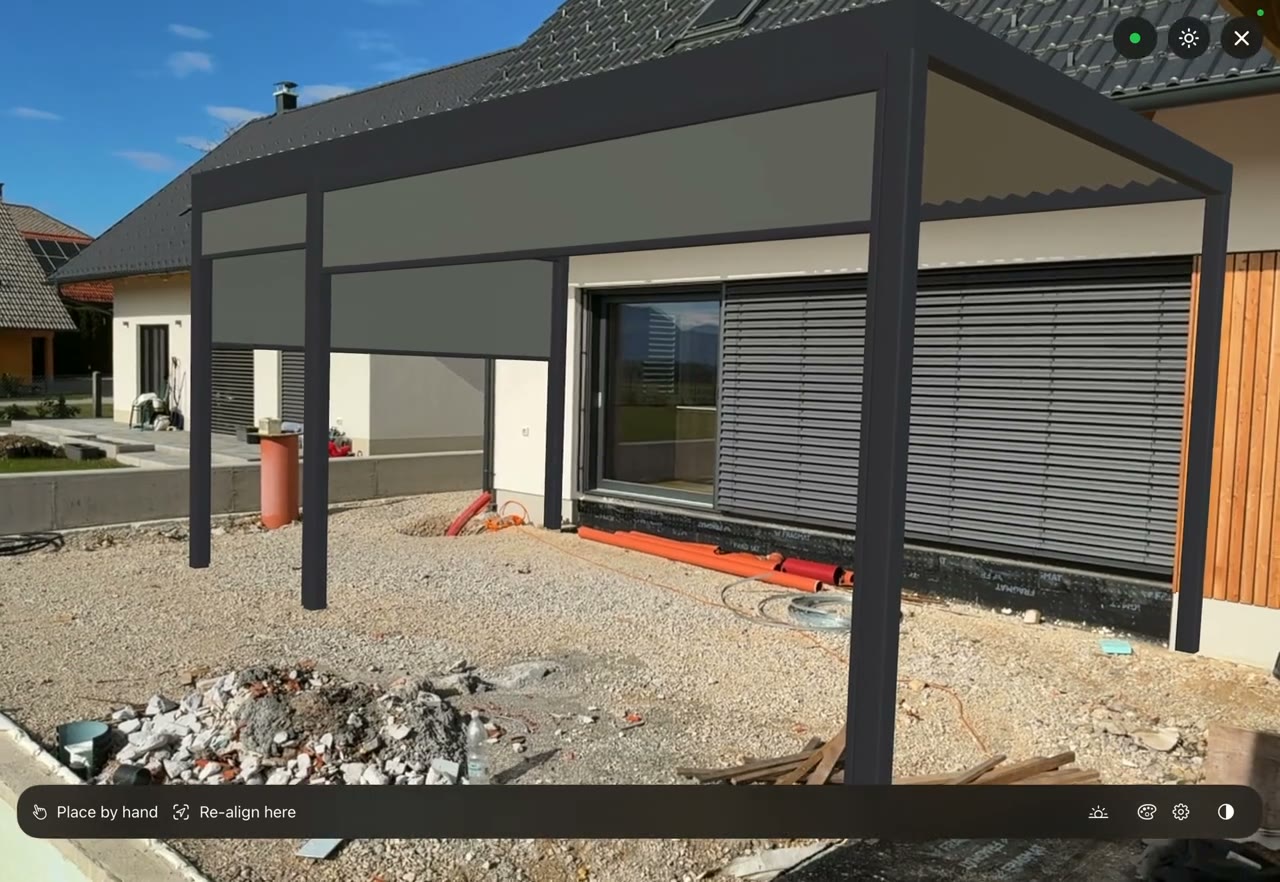 9:50
On site with the iPad
Scan, design and show the customer while standing in their garden.
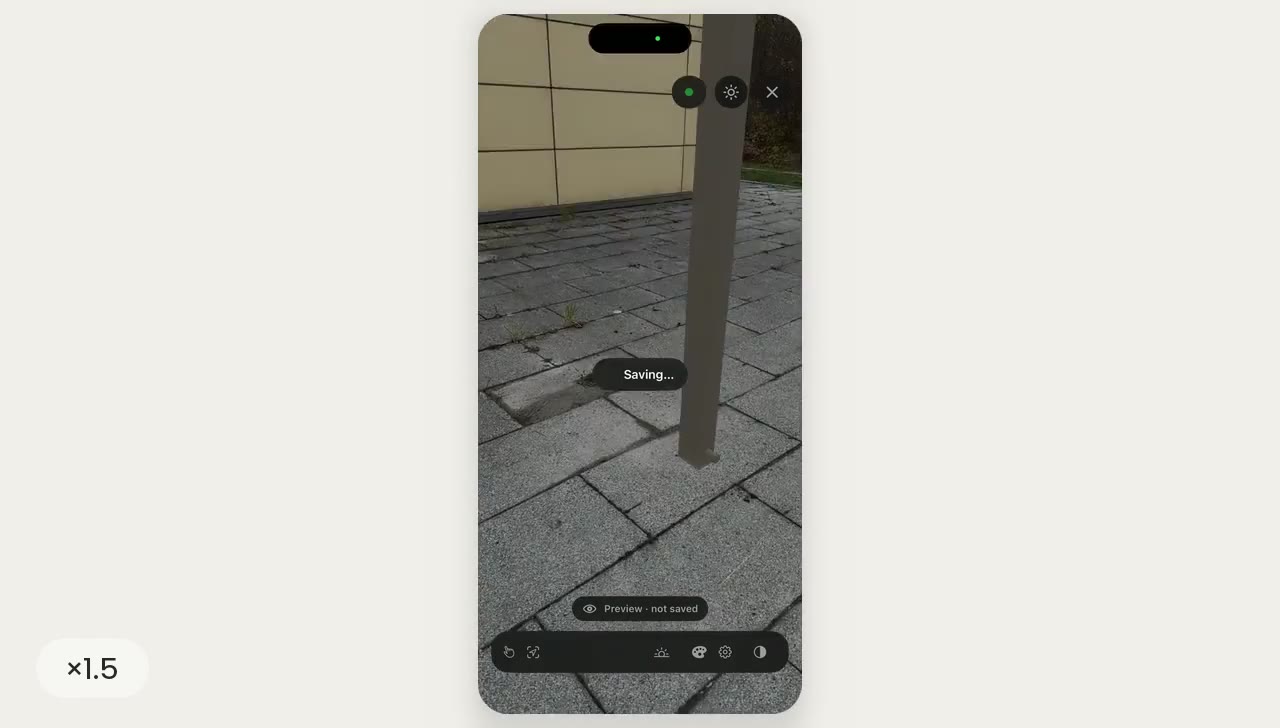 5:02
From a phone capture to the quote
Scan with the phone, take hero shots, place the design in AR and send the quote link.
 2:59
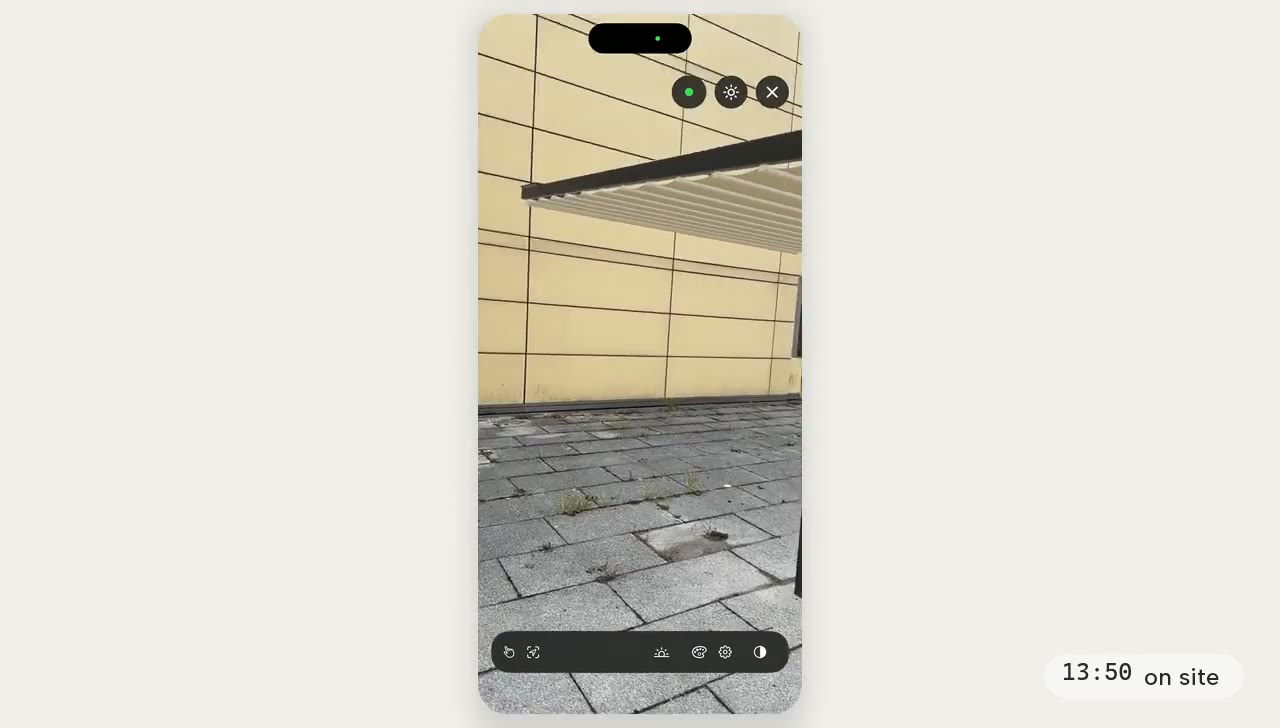
On site, live
One visit in real time: the scan, hero shots, then the awning and the pergola in AR, with the clock running.
01 · 0:20
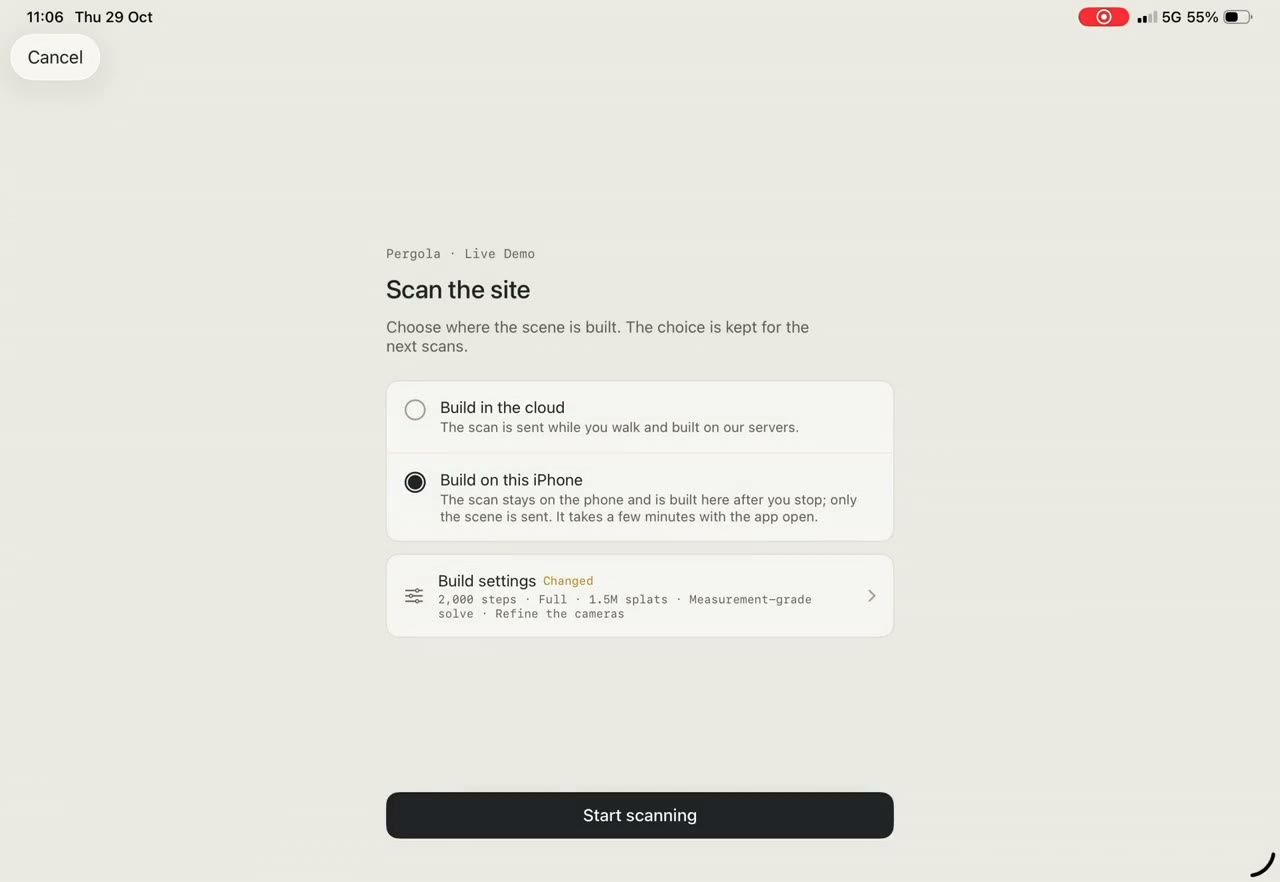
Start a project
02 · 0:41
Get the site from a photo
 0:11
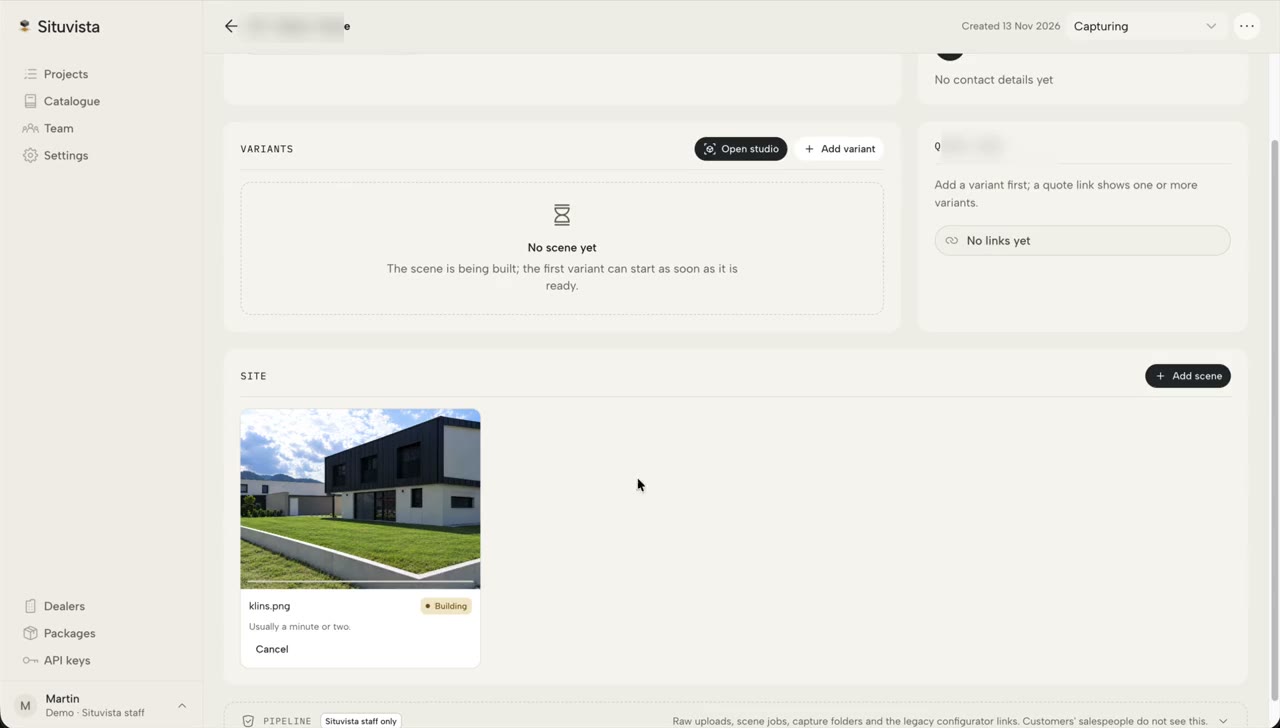
Build a scene from one photo
Upload a site photo and get a 3D scene to design on.
 0:15
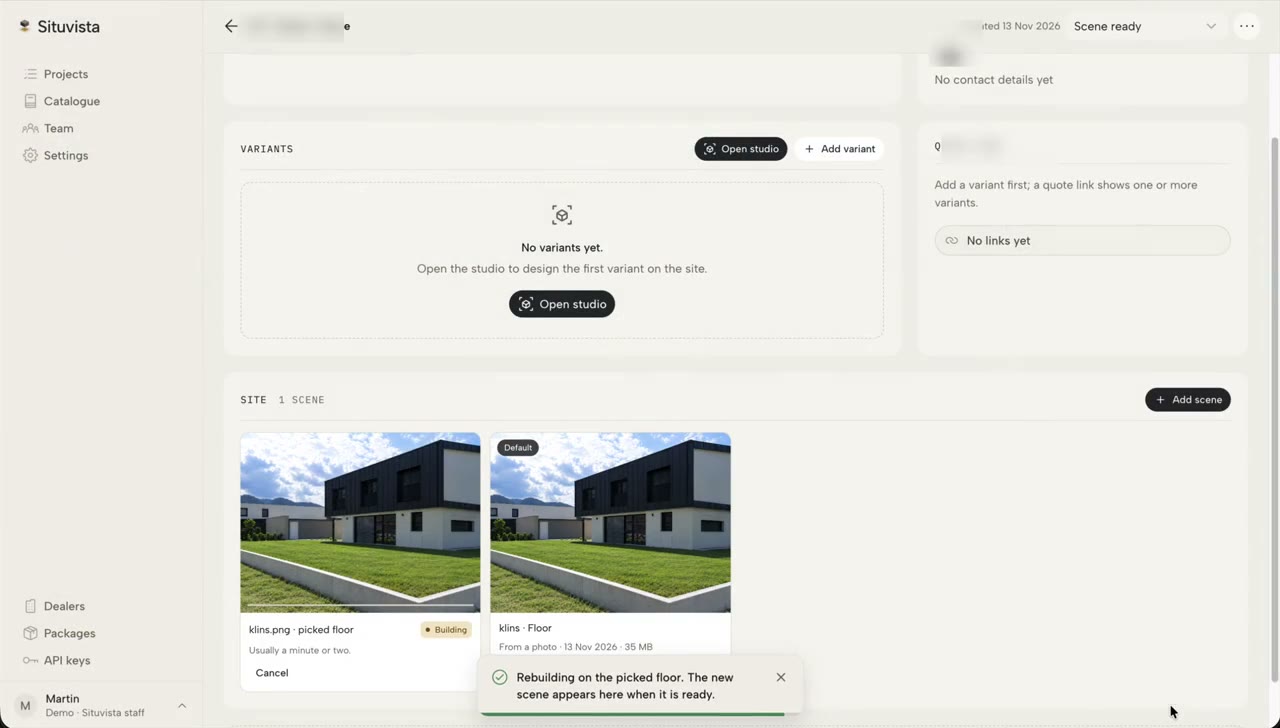
Pick the floor
When the photo's ground is unclear, pick the floor the products stand on and rebuild.
 0:15
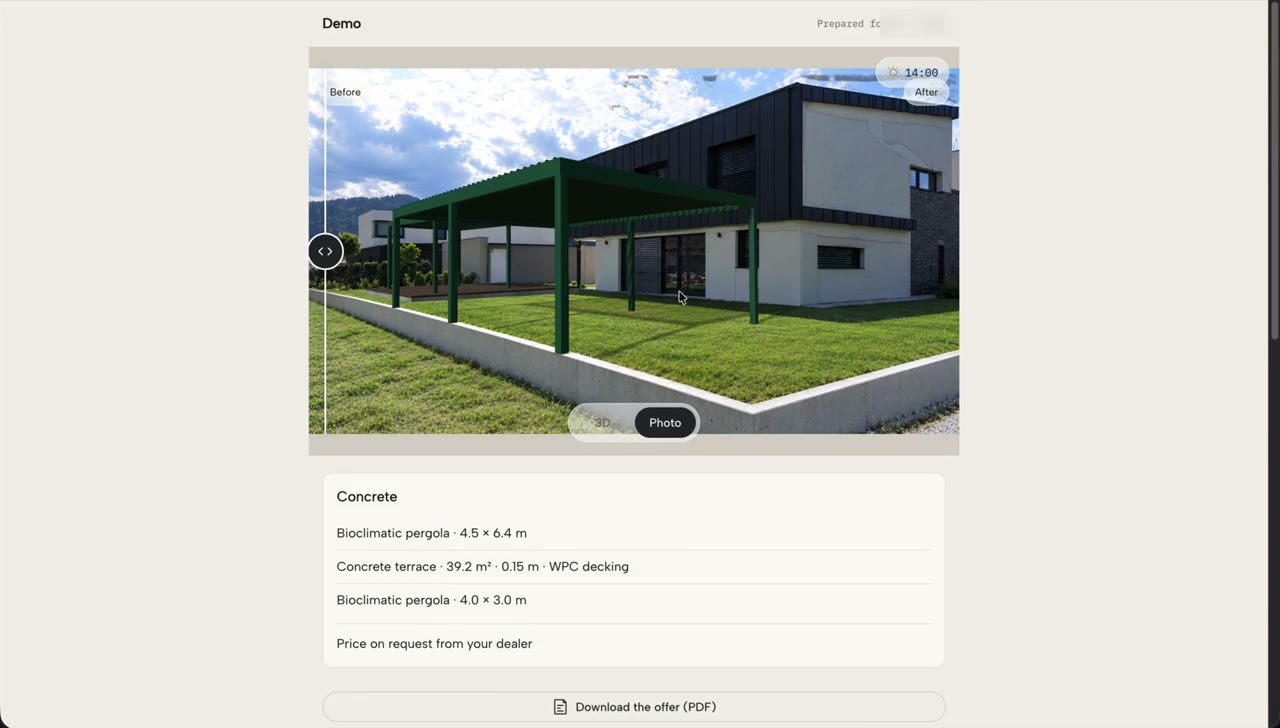
Before and after on the photo
The design on the customer's own photograph, with a slider between before and after.
03 · 4:15
Scan the site in 3D
 0:13
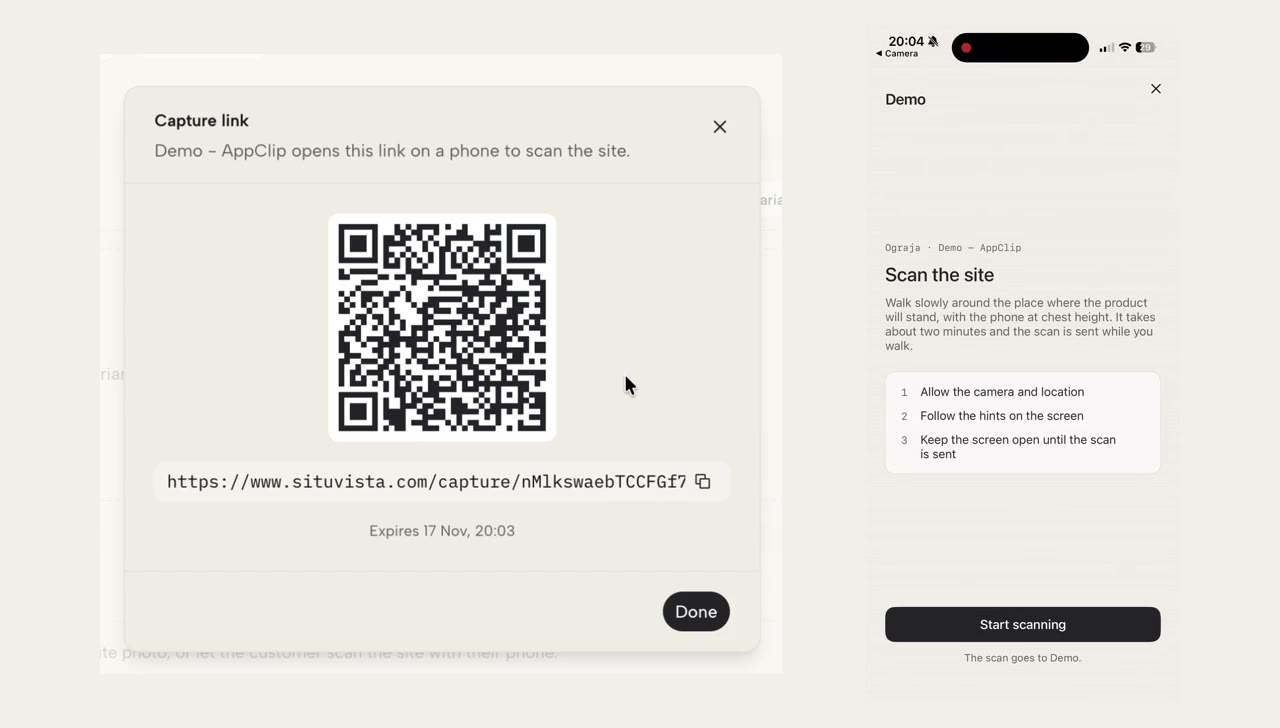
Ask the customer to scan
Send a capture link or show a QR code; the customer scans the site with a phone.
 1:01
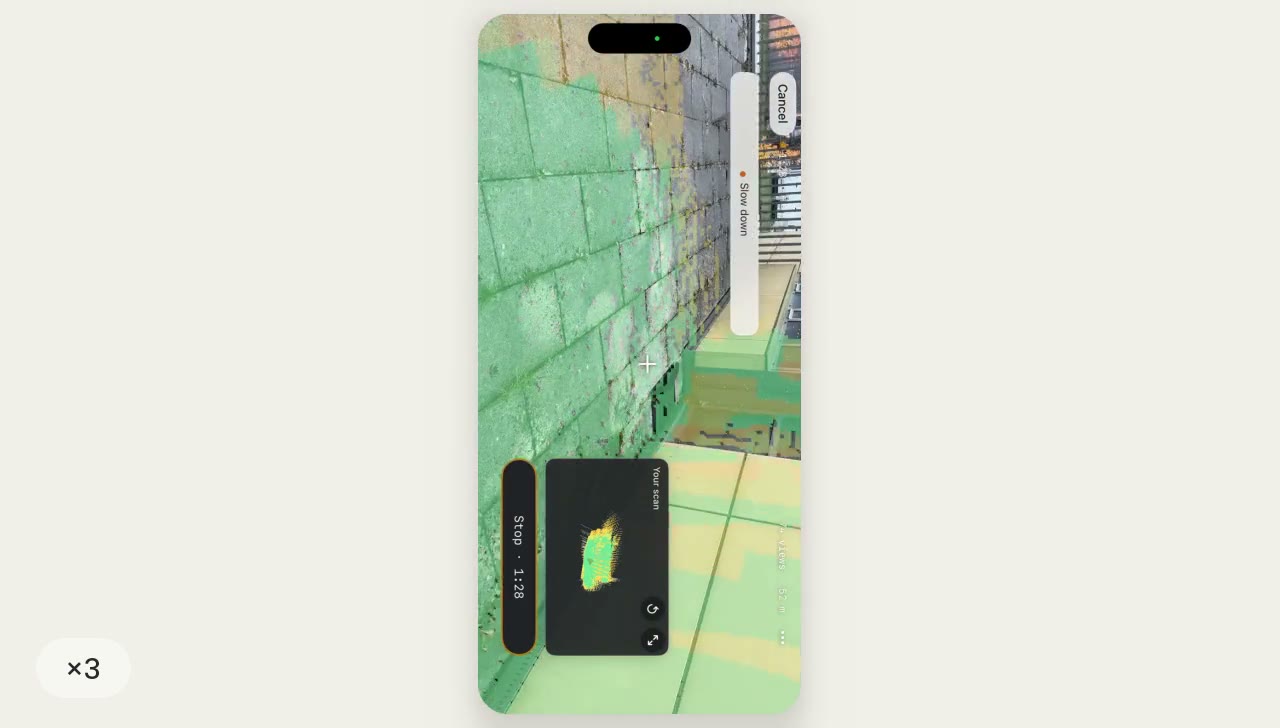
Scan the site yourself
A guided walk with the app, with coverage shown as you go.
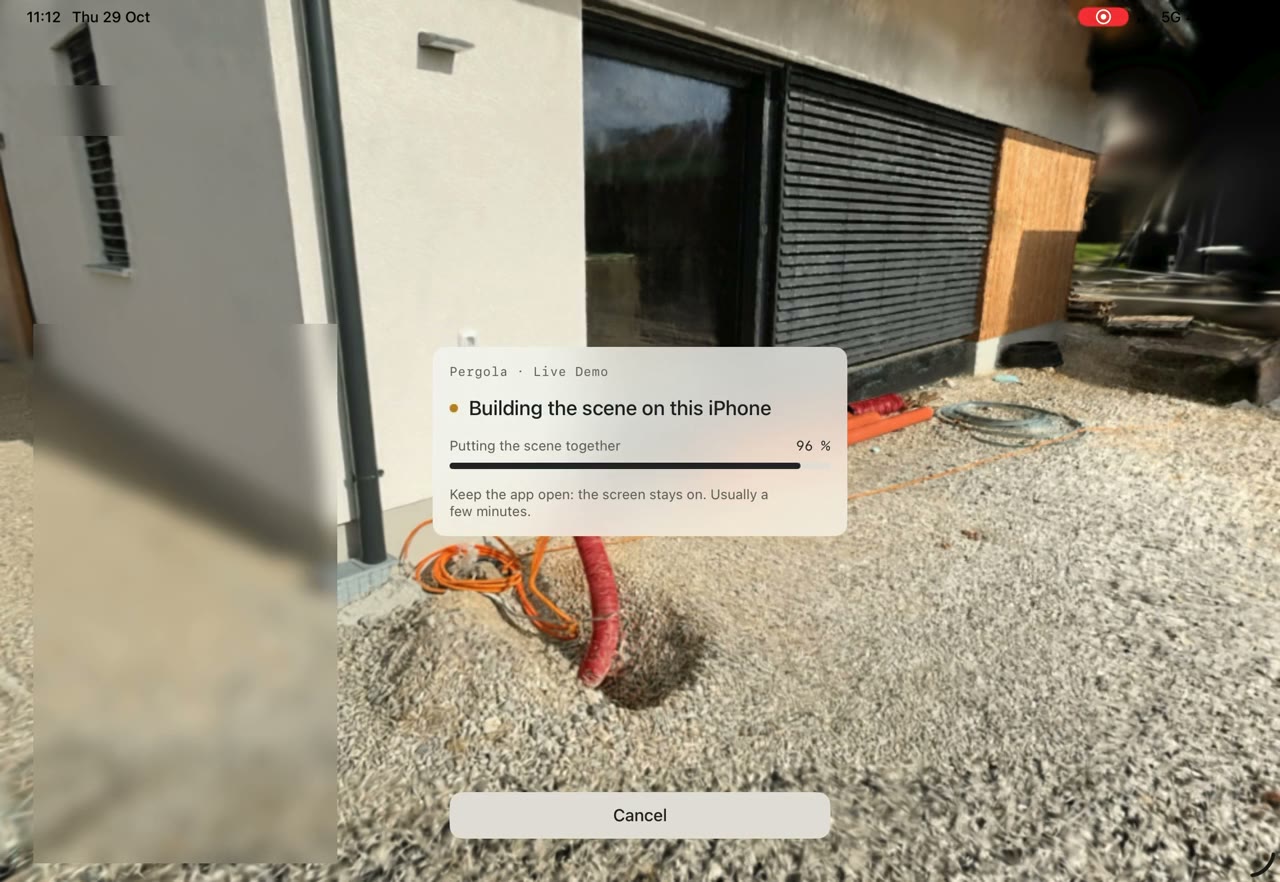 0:24
Build the scene on the device
The scene is built on the phone or iPad right after the walk.
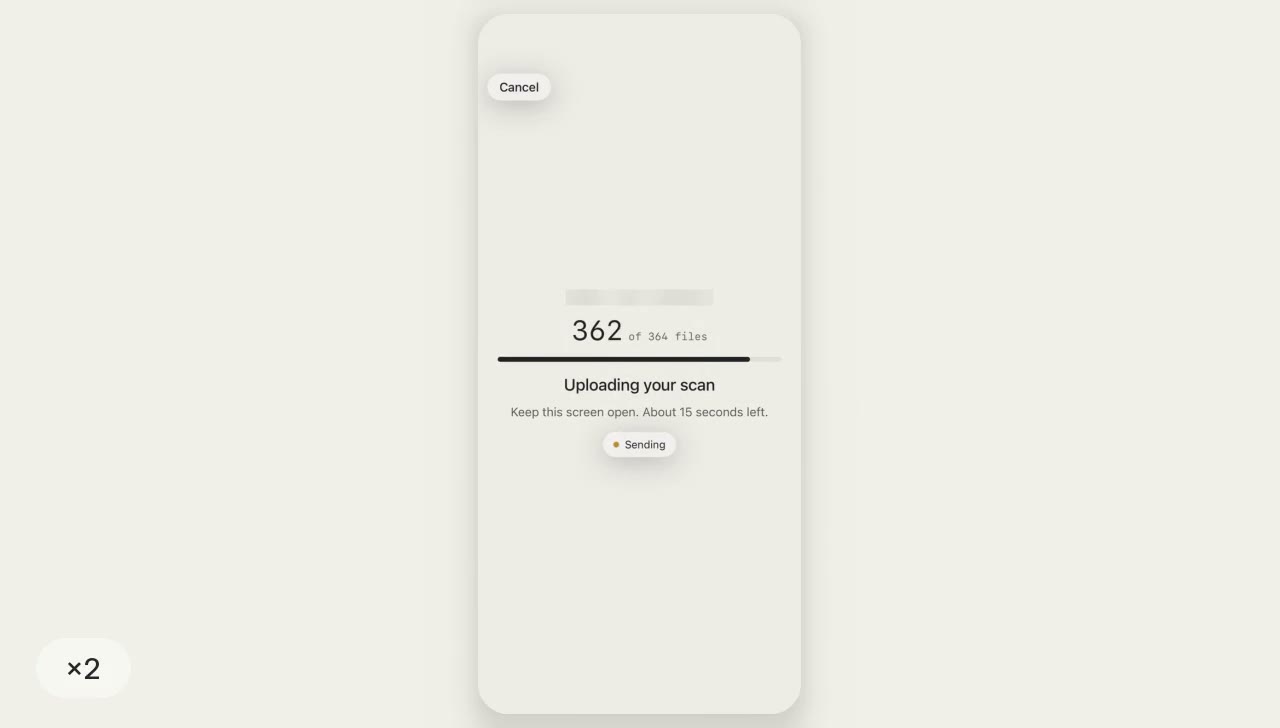 0:13
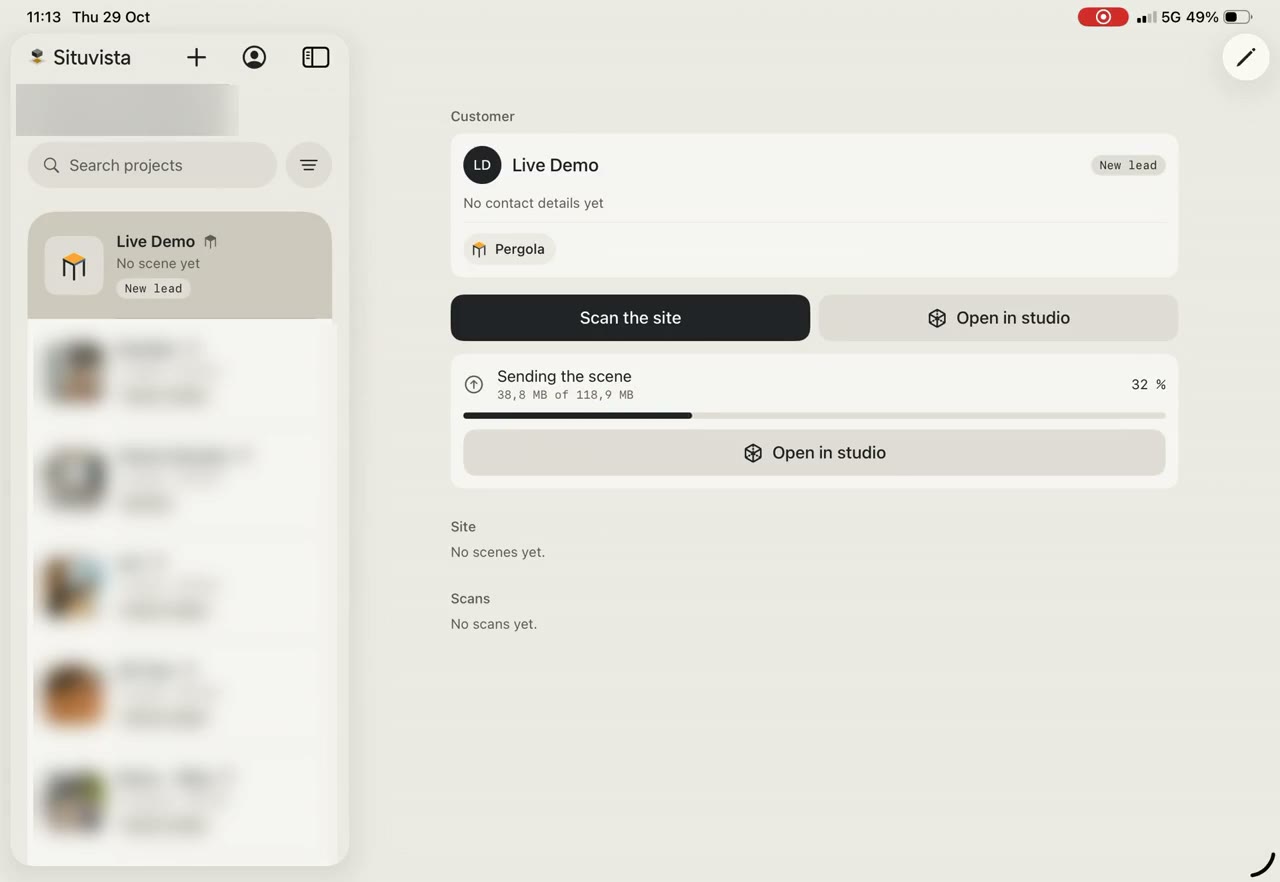
Upload the capture
The capture uploads when you stop, and the scene is built for you.
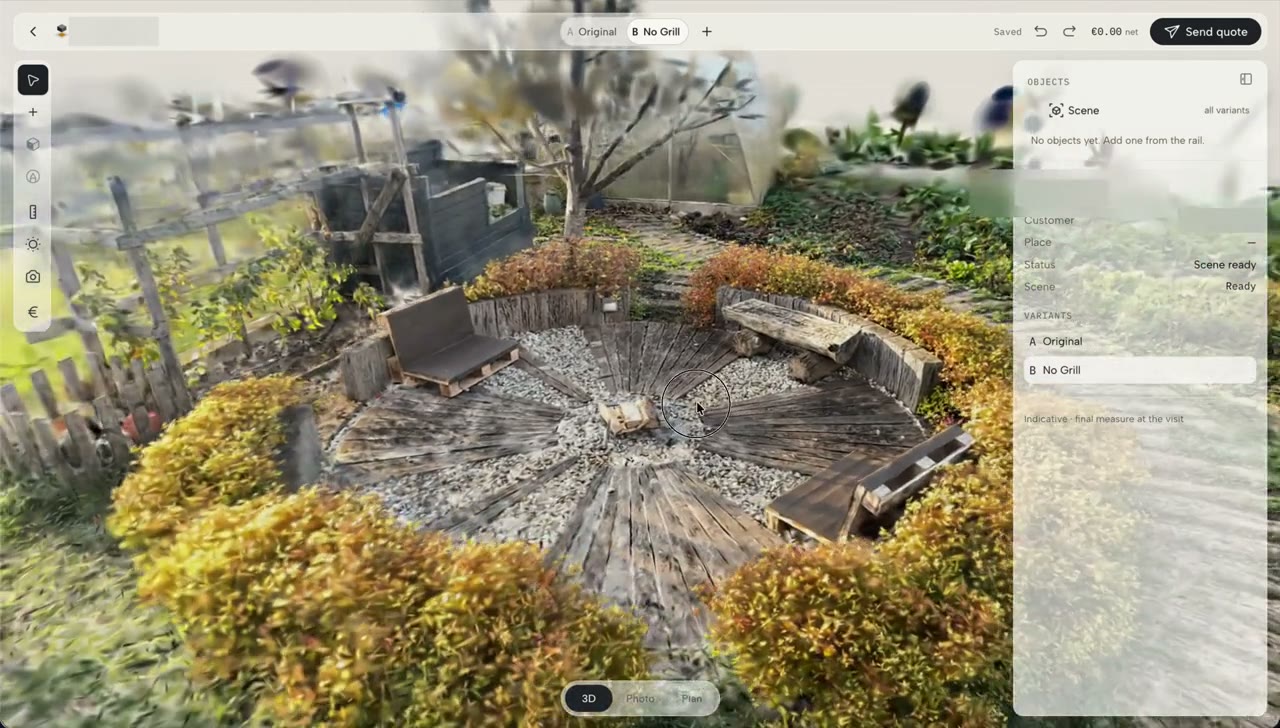 0:25
Enhance and clean up a scan
Rebuild at higher quality and take unwanted objects out of the scan.
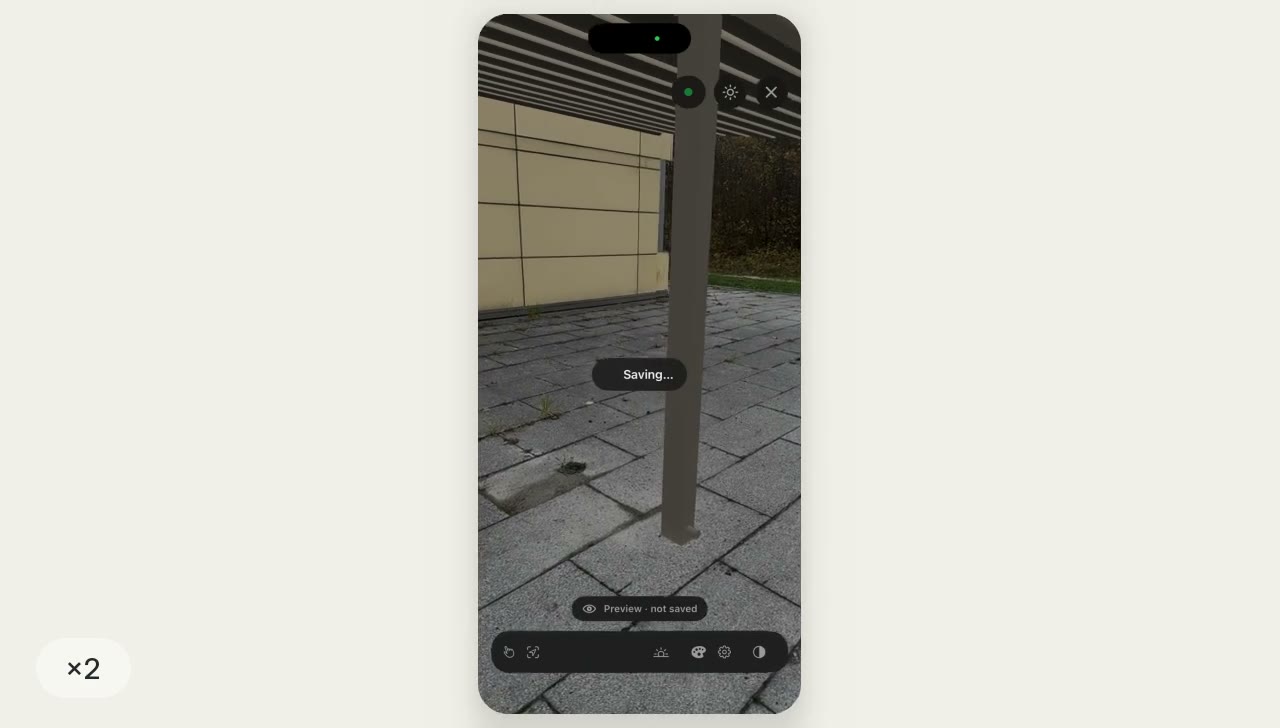 1:10
View the design on site in AR
Walk around the design on site, try colours and see the sun's shadows.
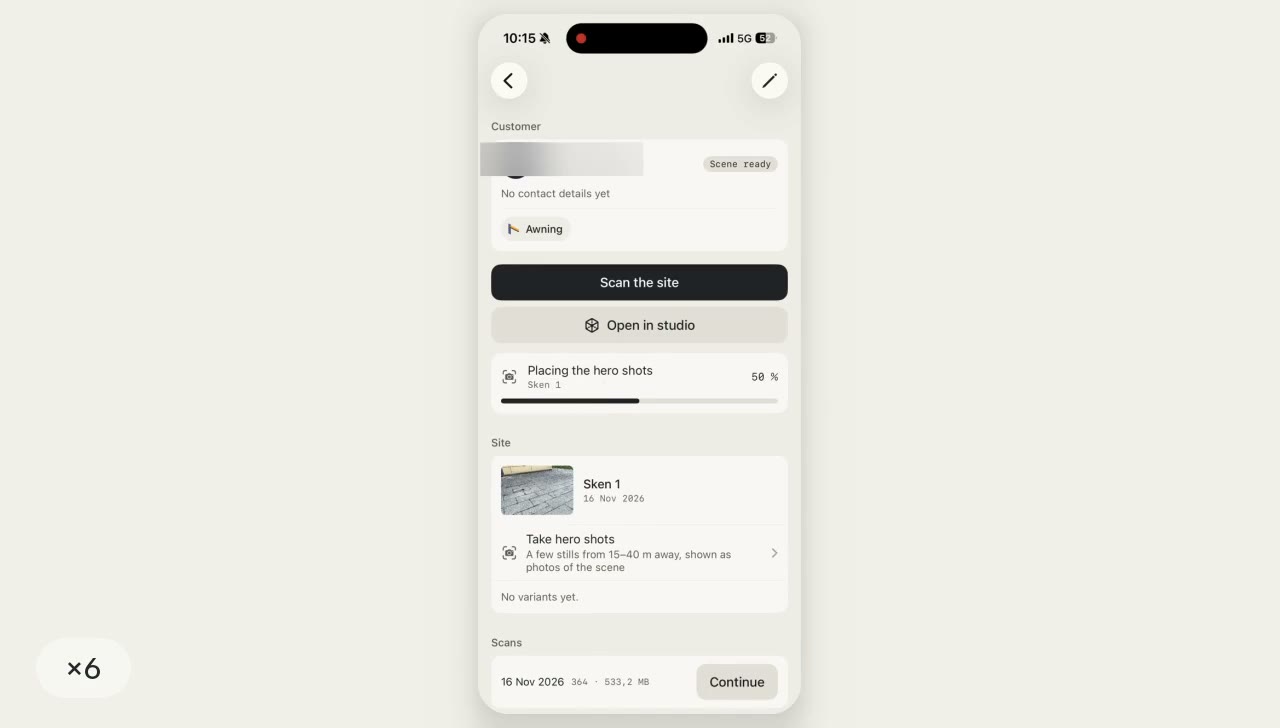 0:47
Take hero shots
Stills from far away, with the design placed on them.
04 · 6:31
Design on the site
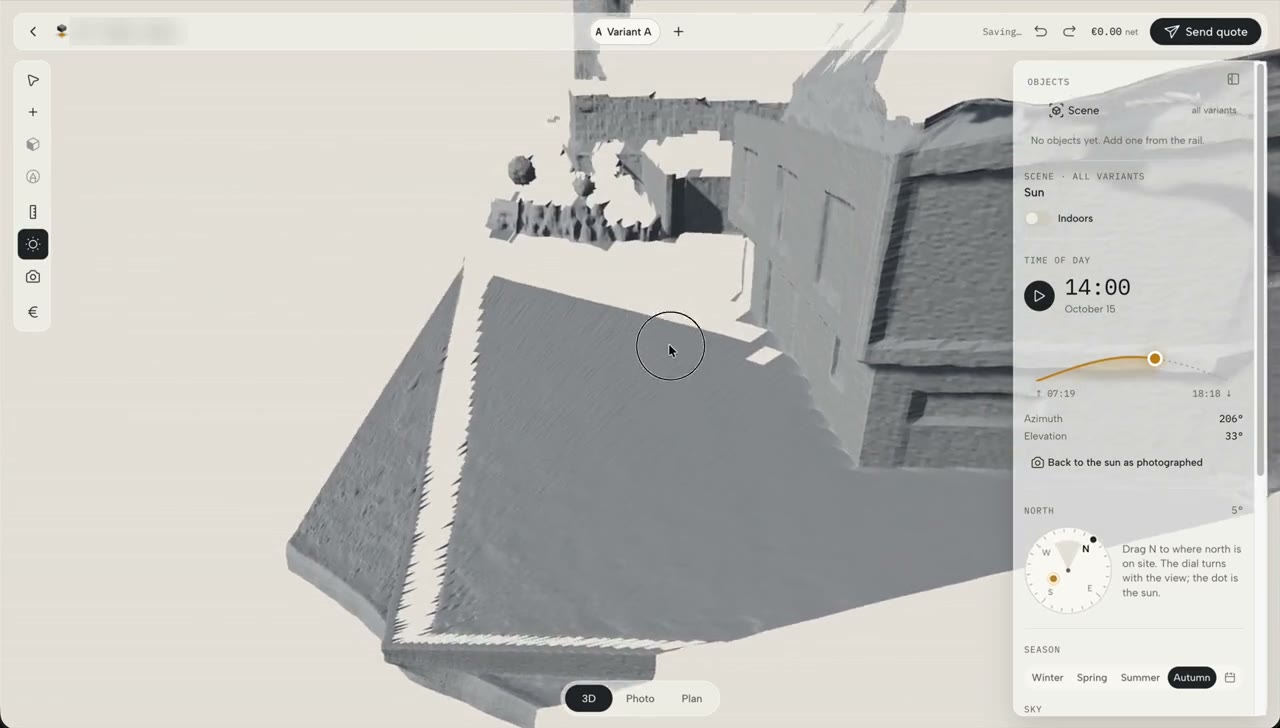 0:22
Studio tour
Find your way around the scene, the views and the panels.
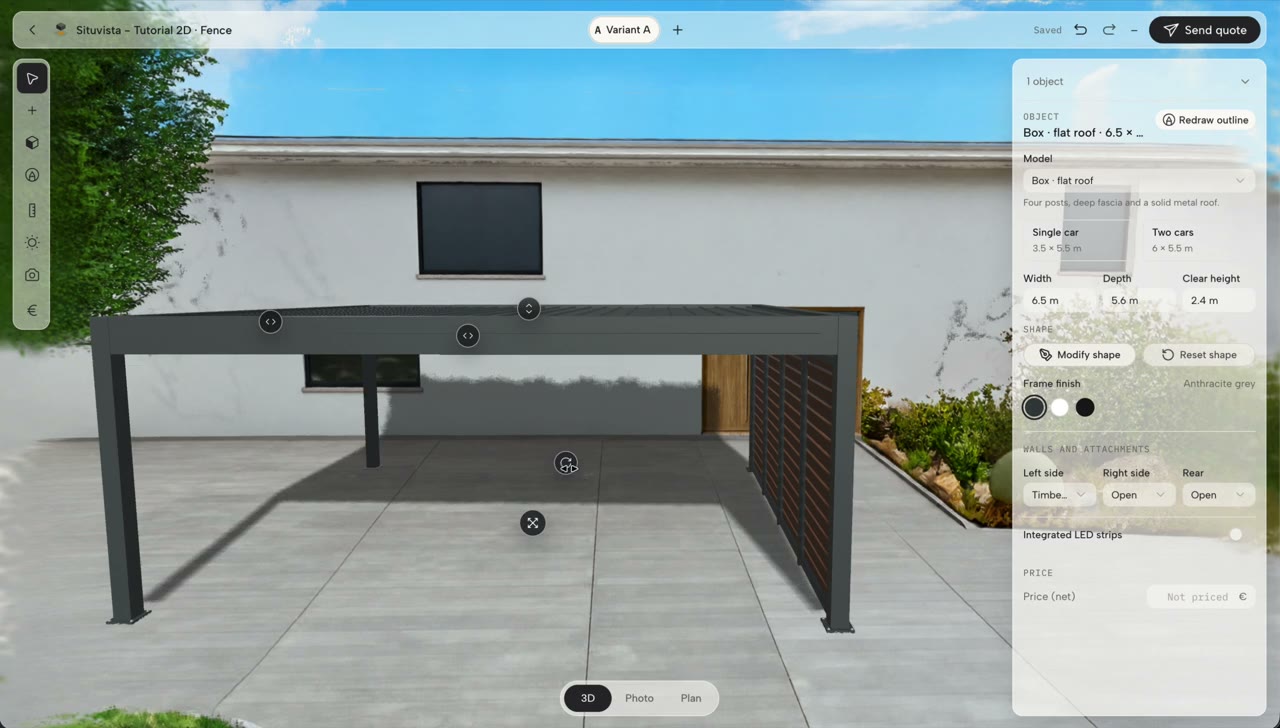 1:05
Place, move and rotate
Add a product and put it exactly where it goes.
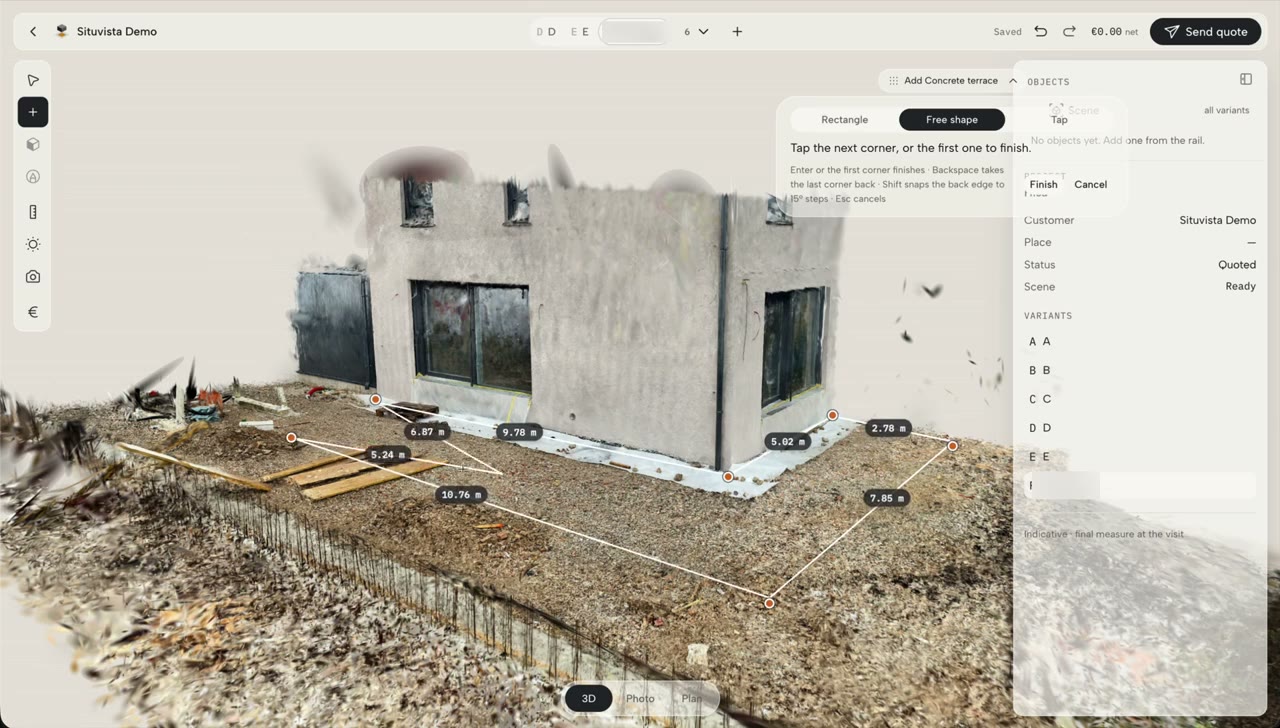 0:15
Draw by its outline
Click the corners on the ground and the product takes their shape.
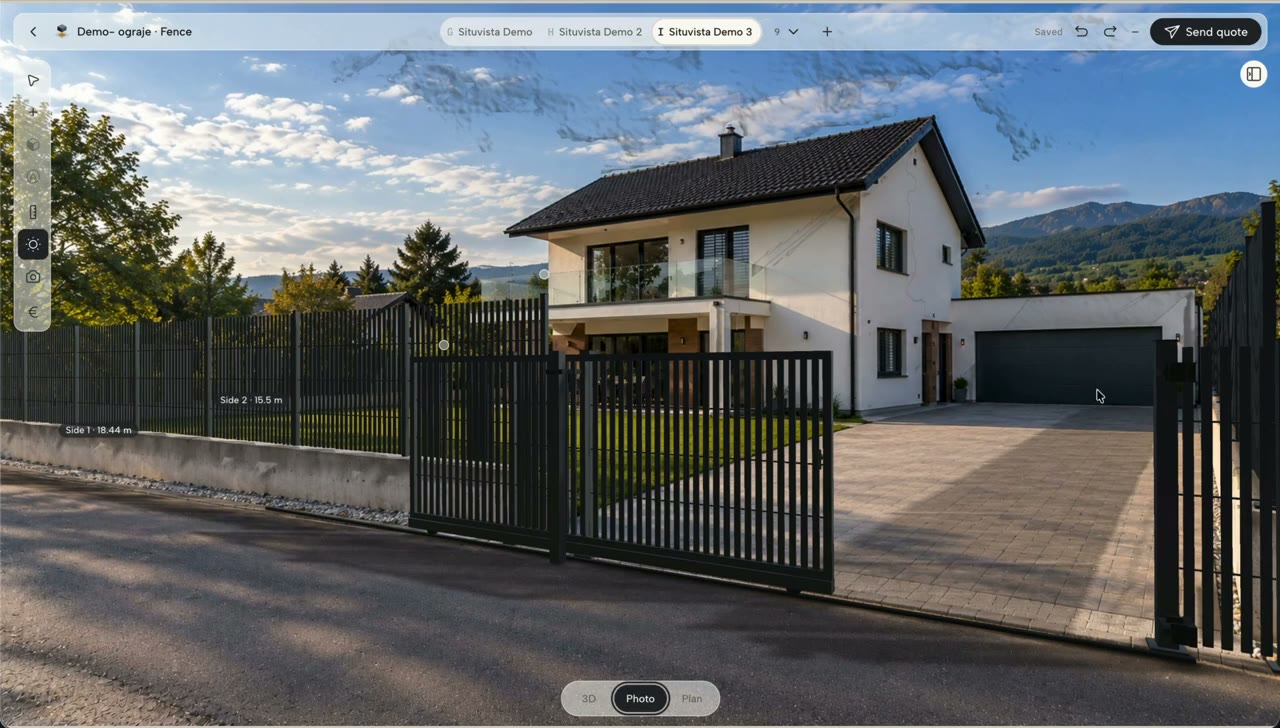 1:19
Fences and railings
Draw a fence along a path, with gates and posts.
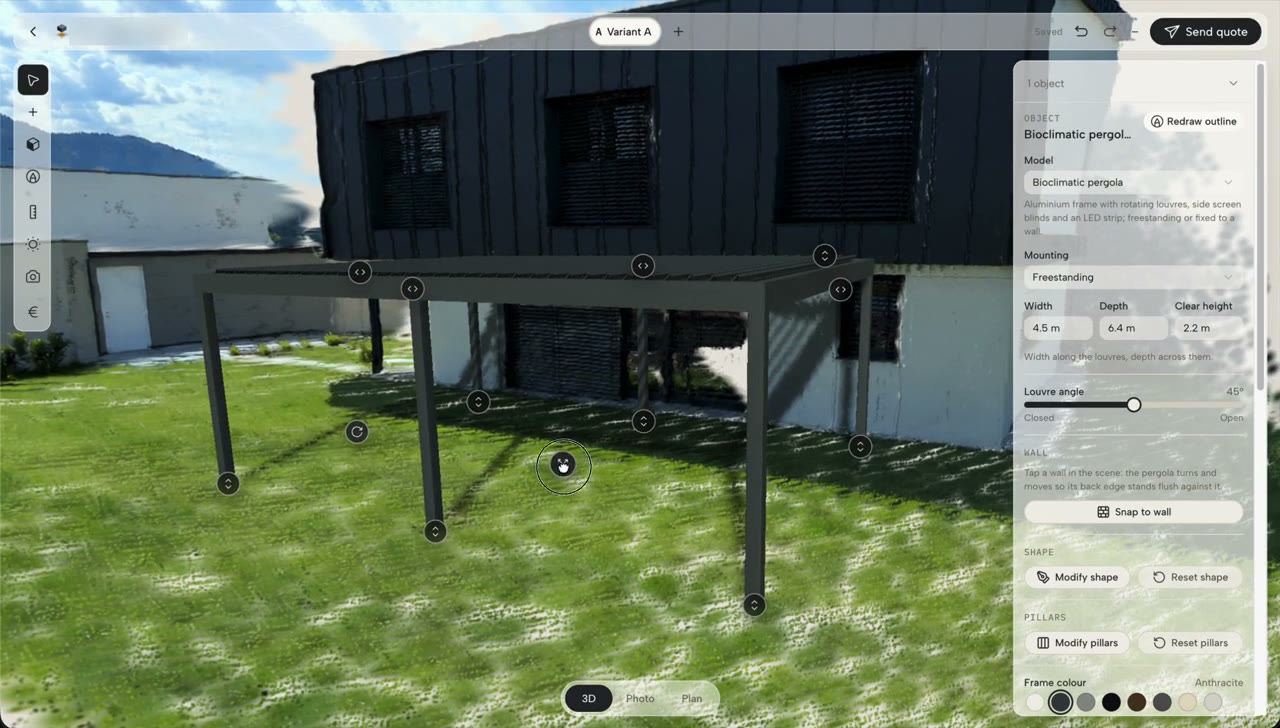 0:48
Pergolas
Size a pergola, set its louvres, colours and posts, and add screen blinds per side.
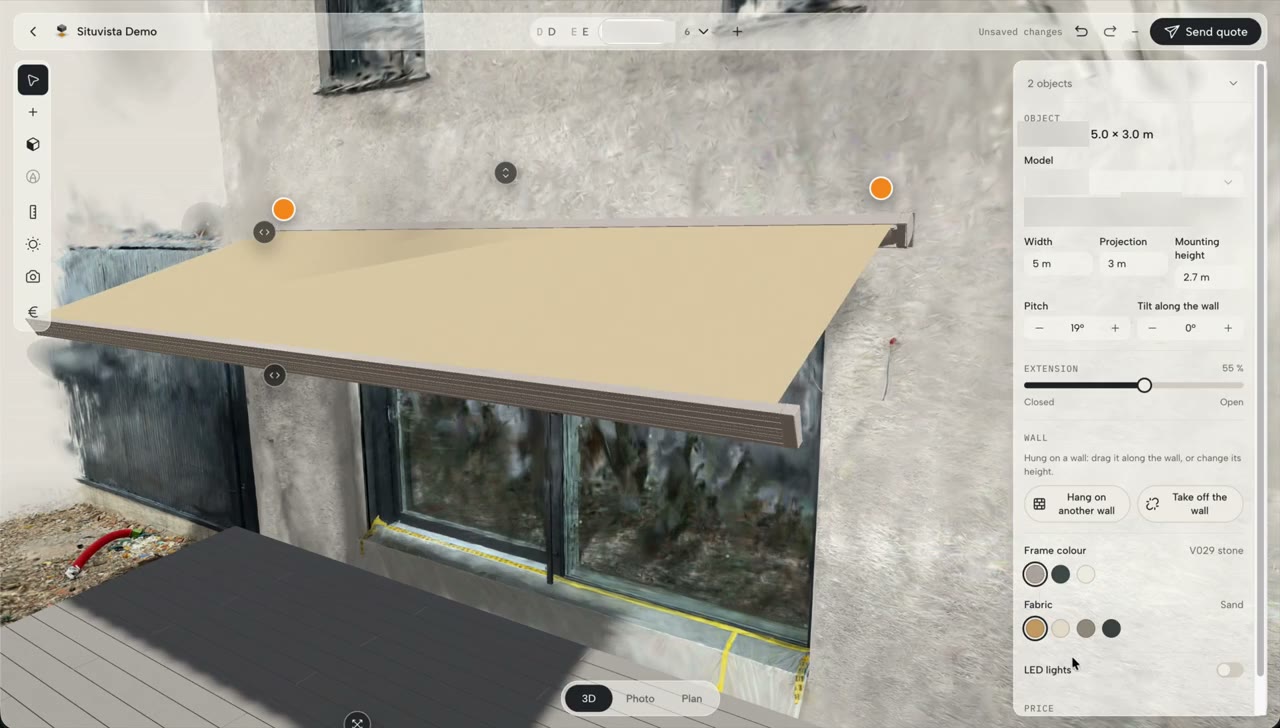 1:06
An awning on the wall
Hang an awning on a wall and set its projection, pitch and colours.
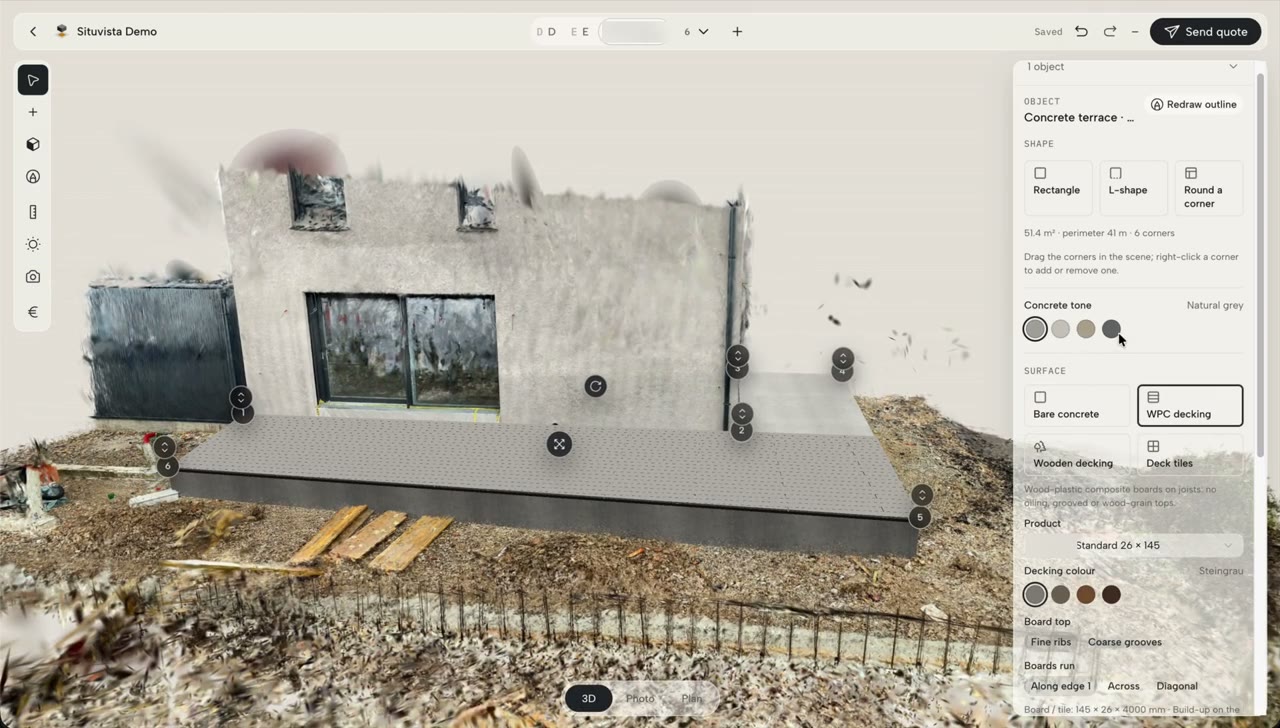 0:36
Concrete base and terrace
Draw a terrace, set its corner heights and decking, and stand a pergola on it.
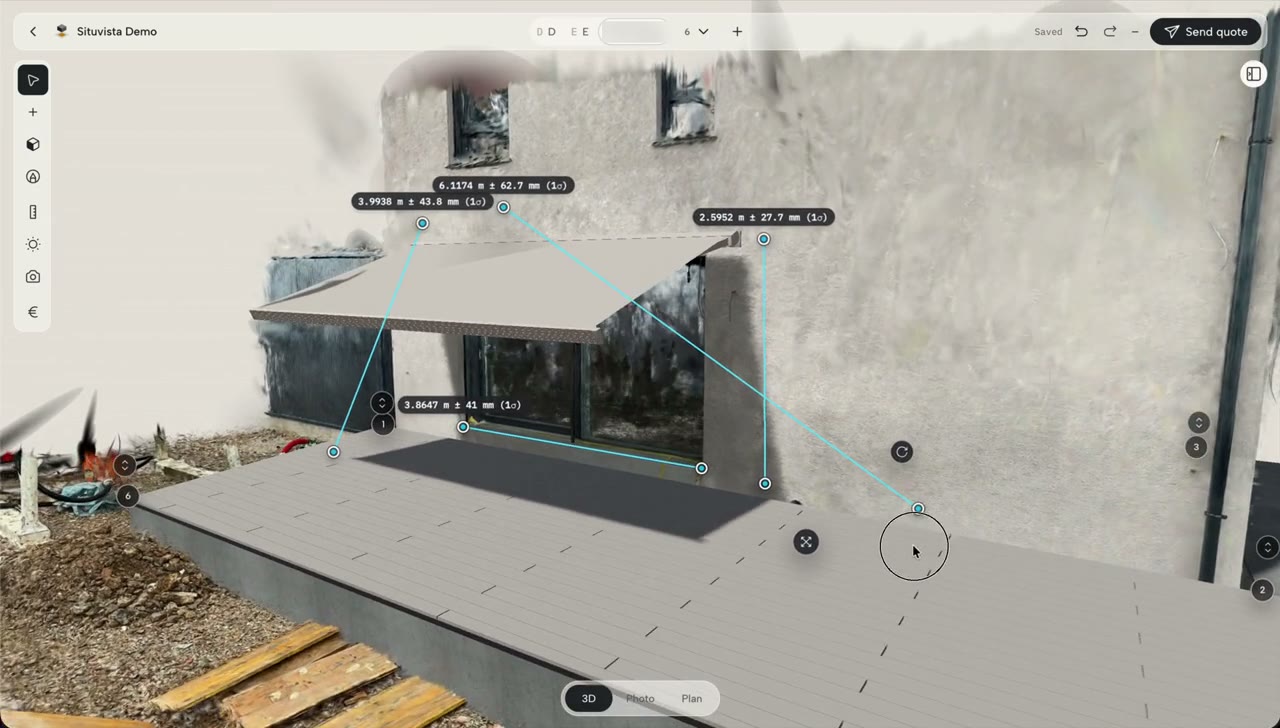 0:42
Measure on the scan
Measure distances on the scan, with how certain each reading is.
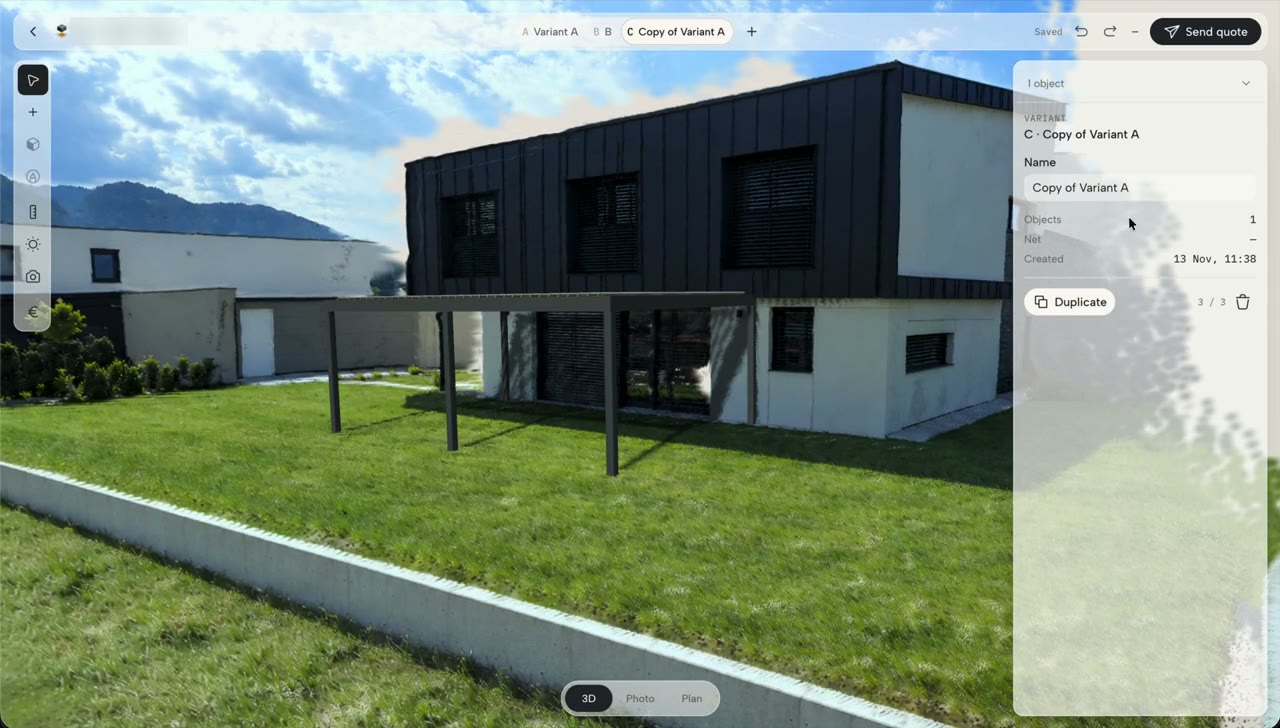 0:18
Variants
Duplicate a design into variants B, C and D to offer options.
05 · 1:36
Present the design
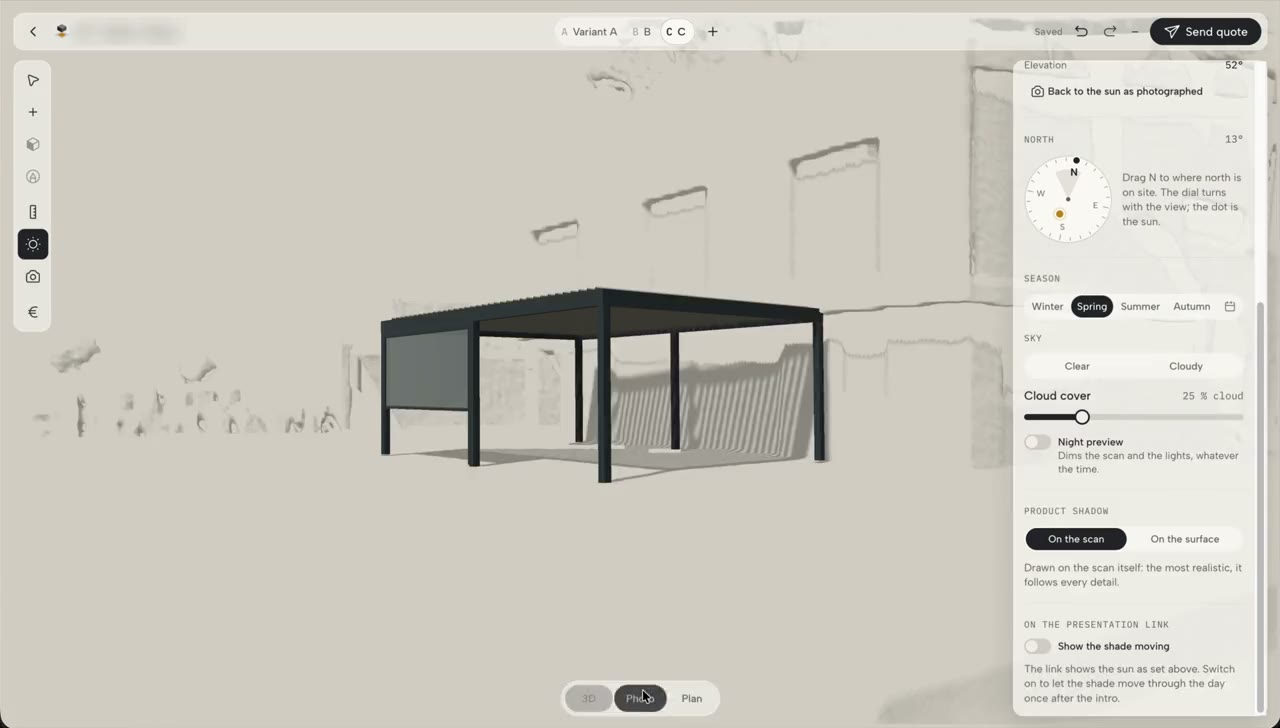
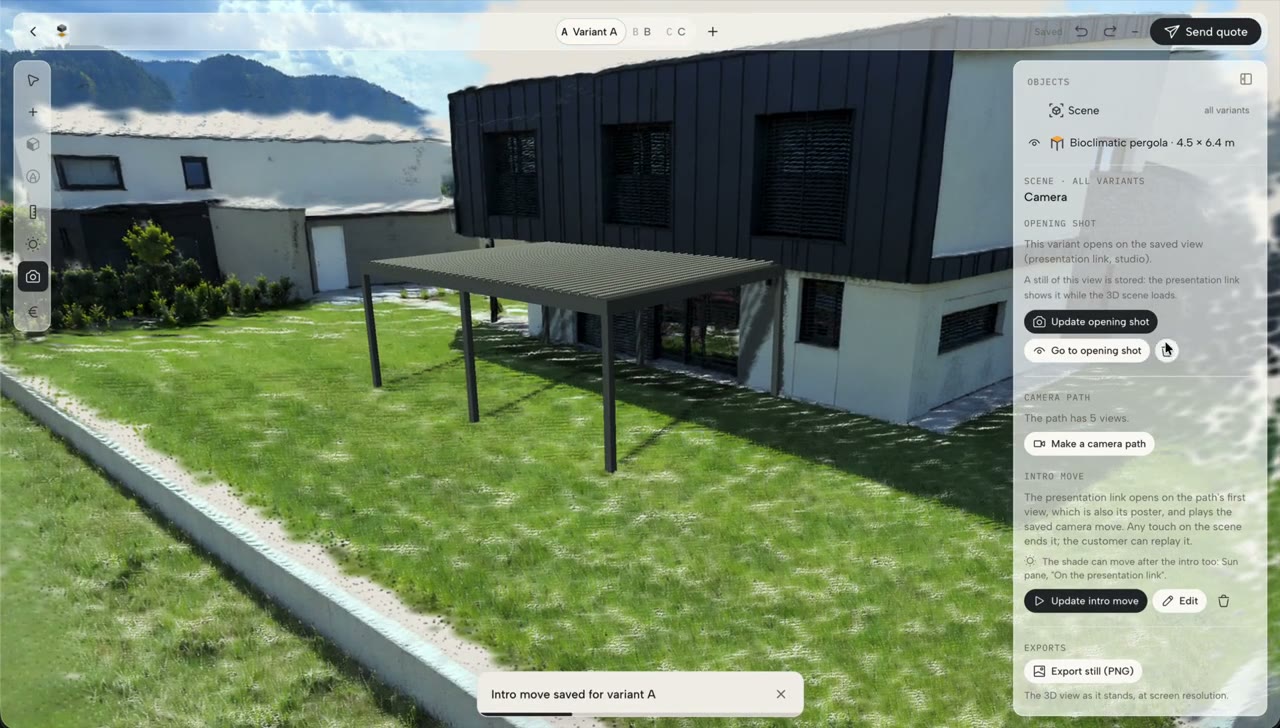
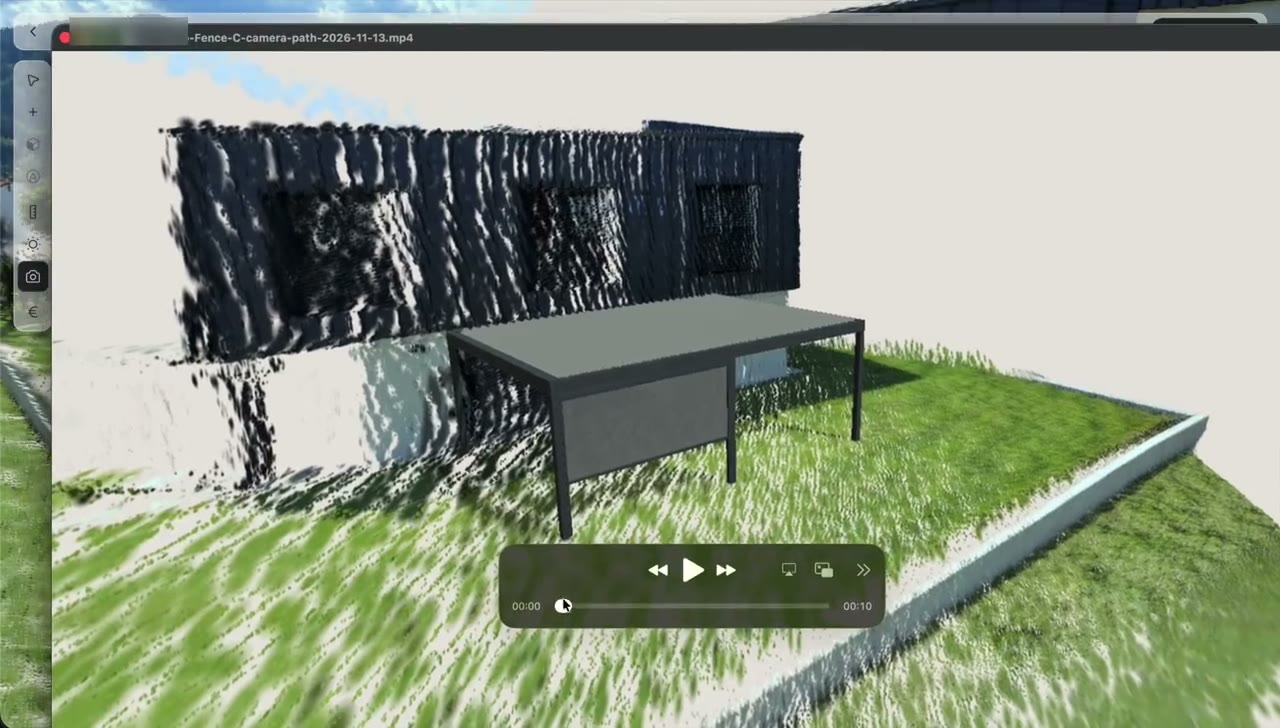
06 · 1:02
Price and send the quote
- Coming soon
Price a variant
Prices per product, extra lines, VAT and the total.
 0:21
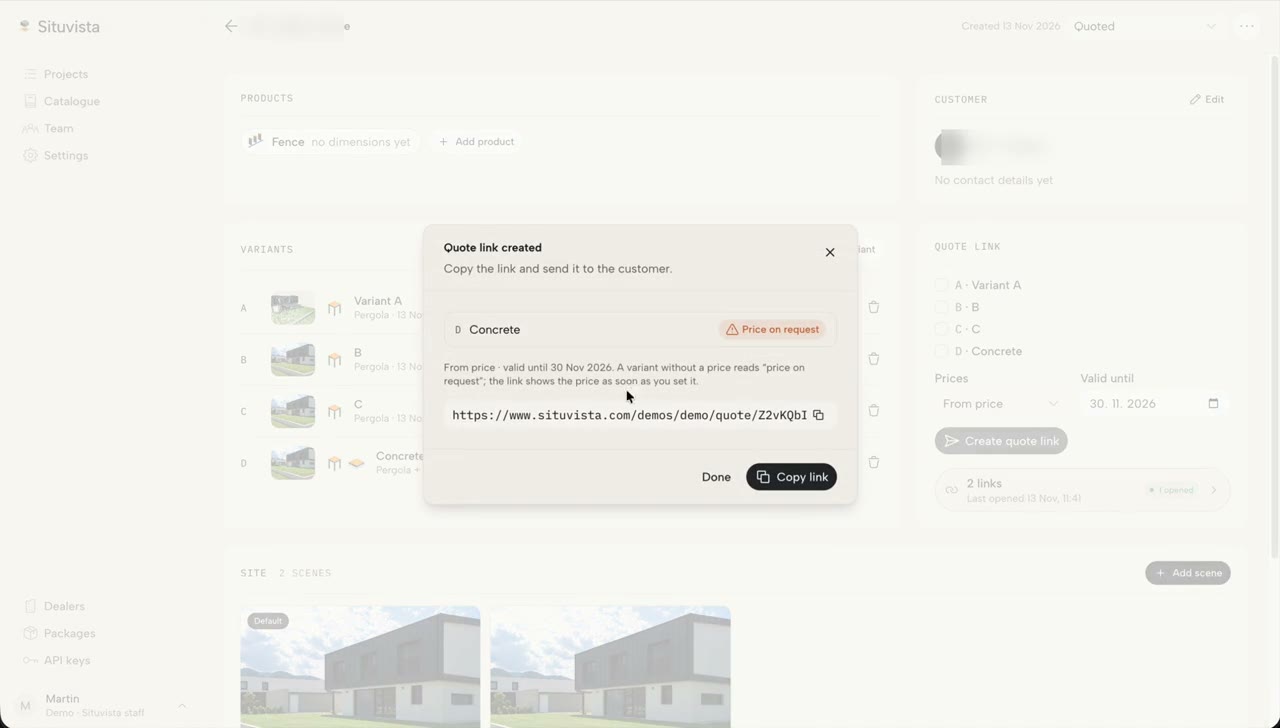
Send a quote link
Pick the variants and create the link the customer opens.
 0:22
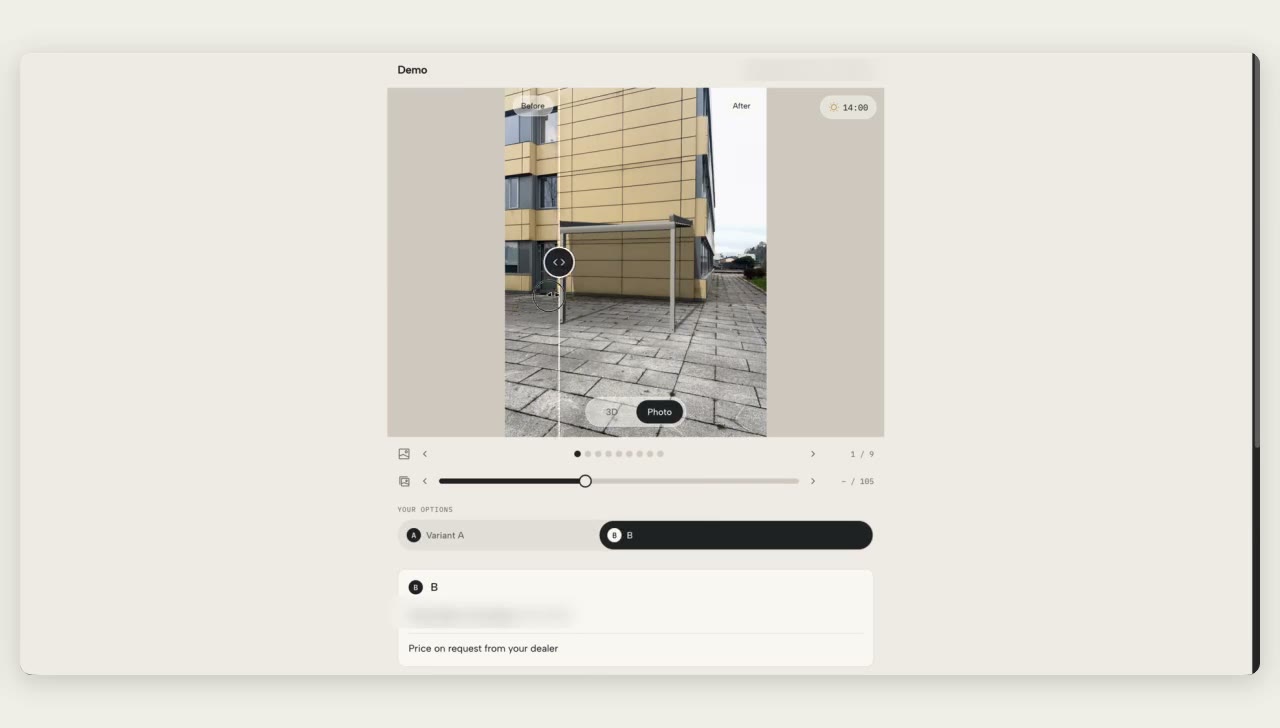
What the customer sees
Before and after on the hero shots, and the options, in the customer's browser.
 0:19
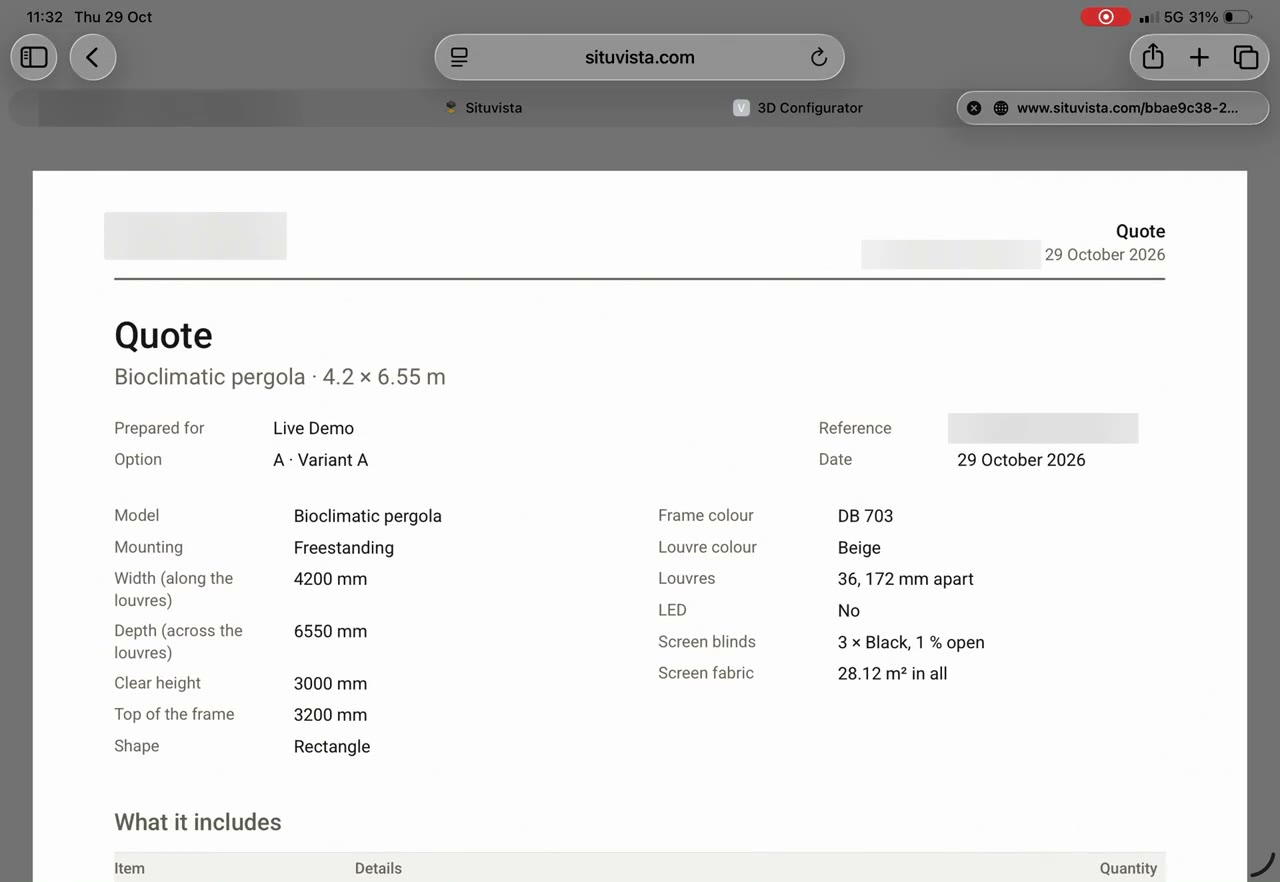
Quote PDF and bill of materials
The PDF with the bill of materials, ready for ordering.
07
Win leads online
- Coming soon
The online configurator
Customers sketch what they want on your website and send it as a lead.
- Coming soon
From a lead to a project
Turn an enquiry with its sketch and photos into a project.